Try the new version of EventWorks, starting with Resources
Resources is the first section you can try in the new version of EventWorks. See what’s changed and how to switch back to the classic version at any time.
We’re rebuilding the EventWorks interface one section at a time. Resources is the first section you can try in the new version. You can switch from the Resources page you use today and switch back to the classic version whenever you like.
Both versions are views of the same EventWorks account, not separate copies. If you change a resource’s unit price in the new version, you’ll see that price in the classic version too.
How to try the new version
- Click Resources in the menu on the left.
- In the page heading, beside Create resource, click Try the new version. There’s no confirmation step.
- Resources opens in the new version. The first time, a short note explains what’s changed. Click Got it to close the note.
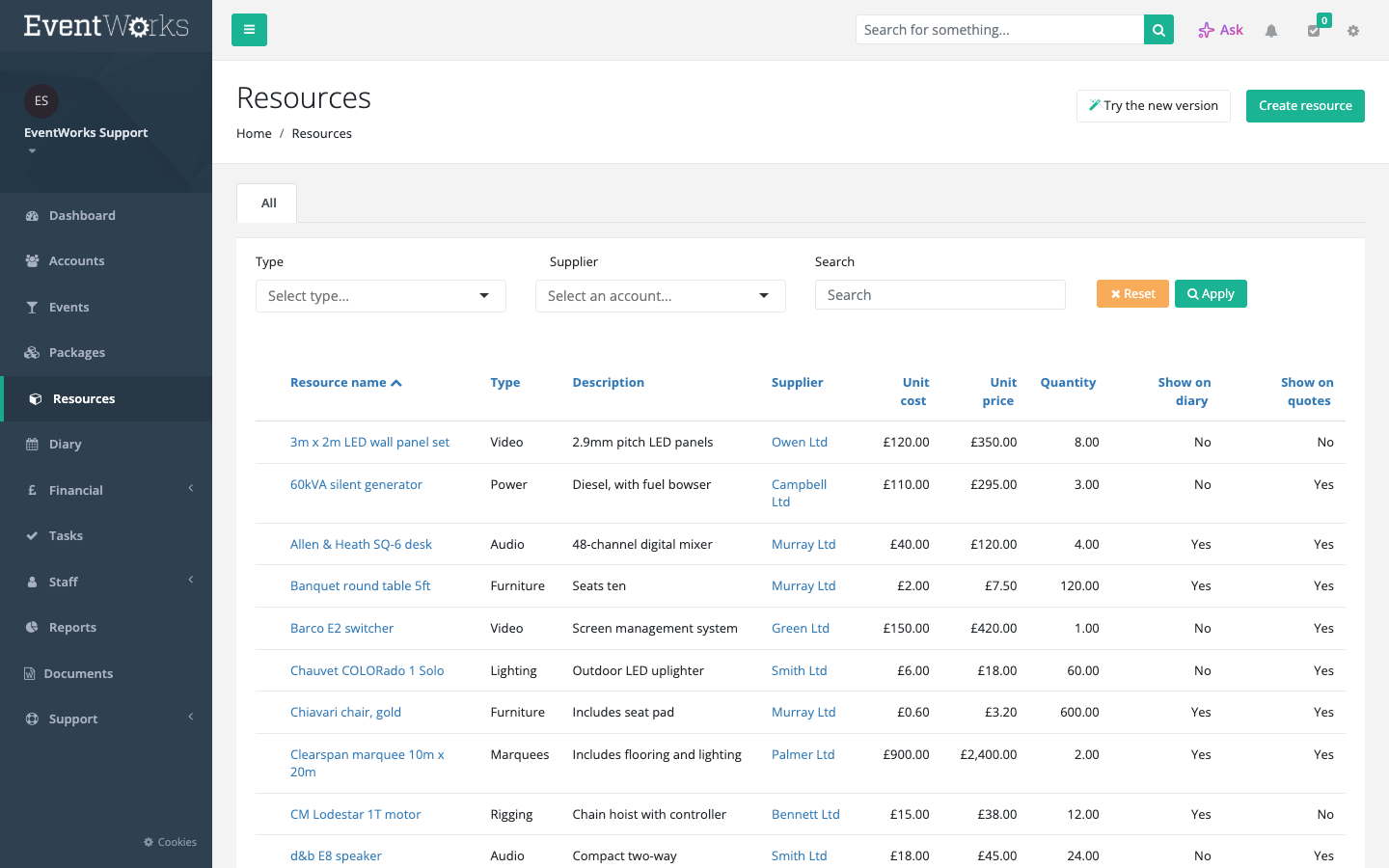
You can switch straight from the Resources page.
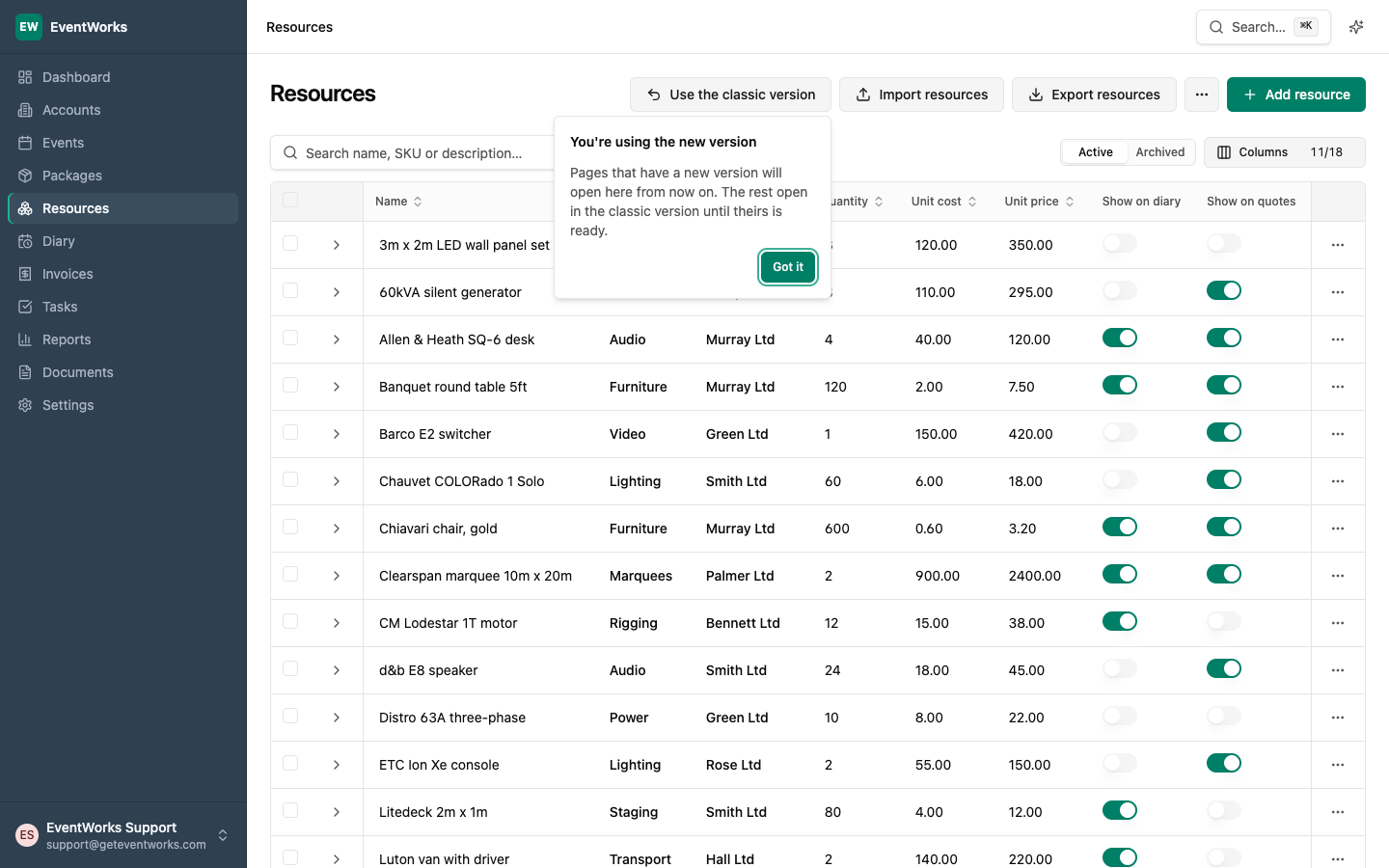
The note appears the first time you switch.
The button only appears on pages in the classic version that have a new version. If you don’t see it on Resources, ask your EventWorks admin to check that Resources is switched on for your workspace and that your role can edit resources.
Once you switch, pages that have a new version open there, including some settings pages, the Users and Teams pages and your own profile. Every other page keeps opening in the classic version until its new version is ready.
Your browser remembers your choice. On another computer, in another browser or after clearing your cookies, you’ll start in the classic version. Click Try the new version again to switch.
How to switch back
- On any page in the new version, click Use the classic version in the page heading.
- You’ll return to the same page in the classic version. Every page will open there in that browser until you choose to switch again.
You can switch back and forth as often as you like. If you see an error page in the new version, it has a Use the classic version button too, beside Go to the home page.
What you can do on Resources
Search, filter or sort the list to find the kit you need. Choose which columns to show and in what order. The page remembers your layout.
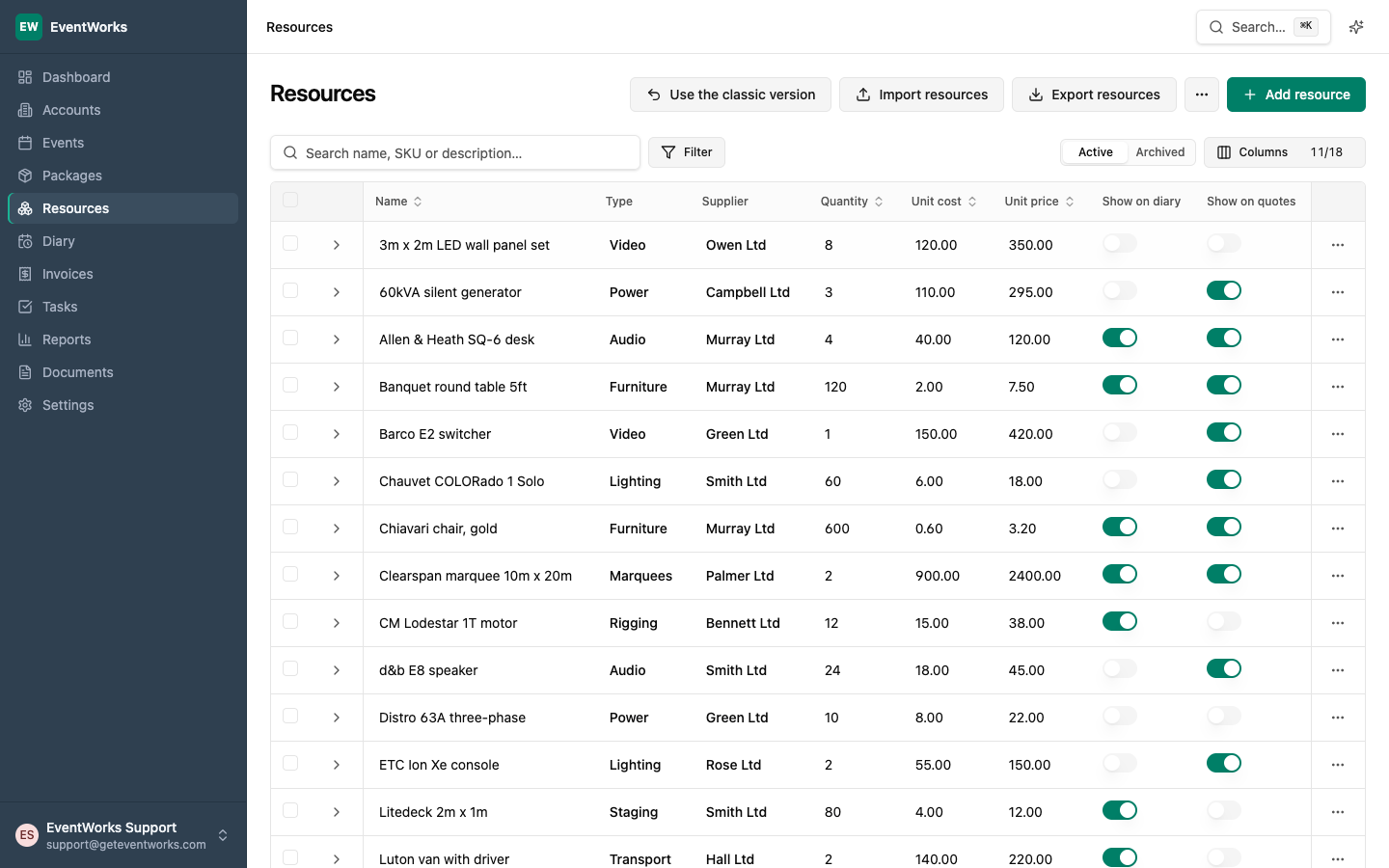
Use Columns to choose the details you want in the list.
Click a cell to edit a resource’s name, SKU, description, quantity, unit cost, unit price, unit weight, type, supplier or team without opening the resource. Choose Edit all properties… for the full form.
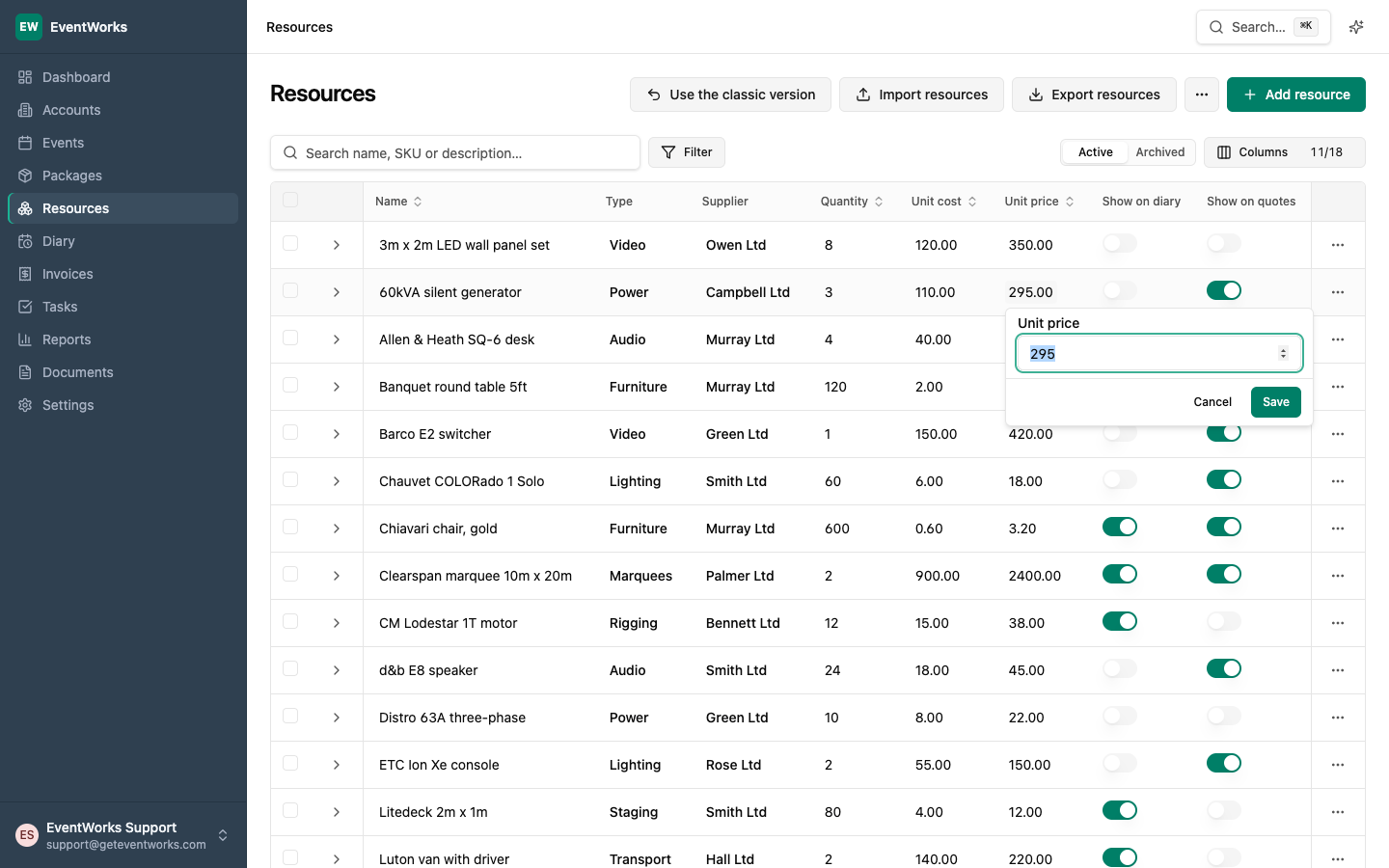
Change the unit price and click Save.
Select several resources, or every resource that matches your filters, to edit, archive, unarchive or delete them together. Archiving moves a resource from Active to Archived. An Undo option appears straight away.
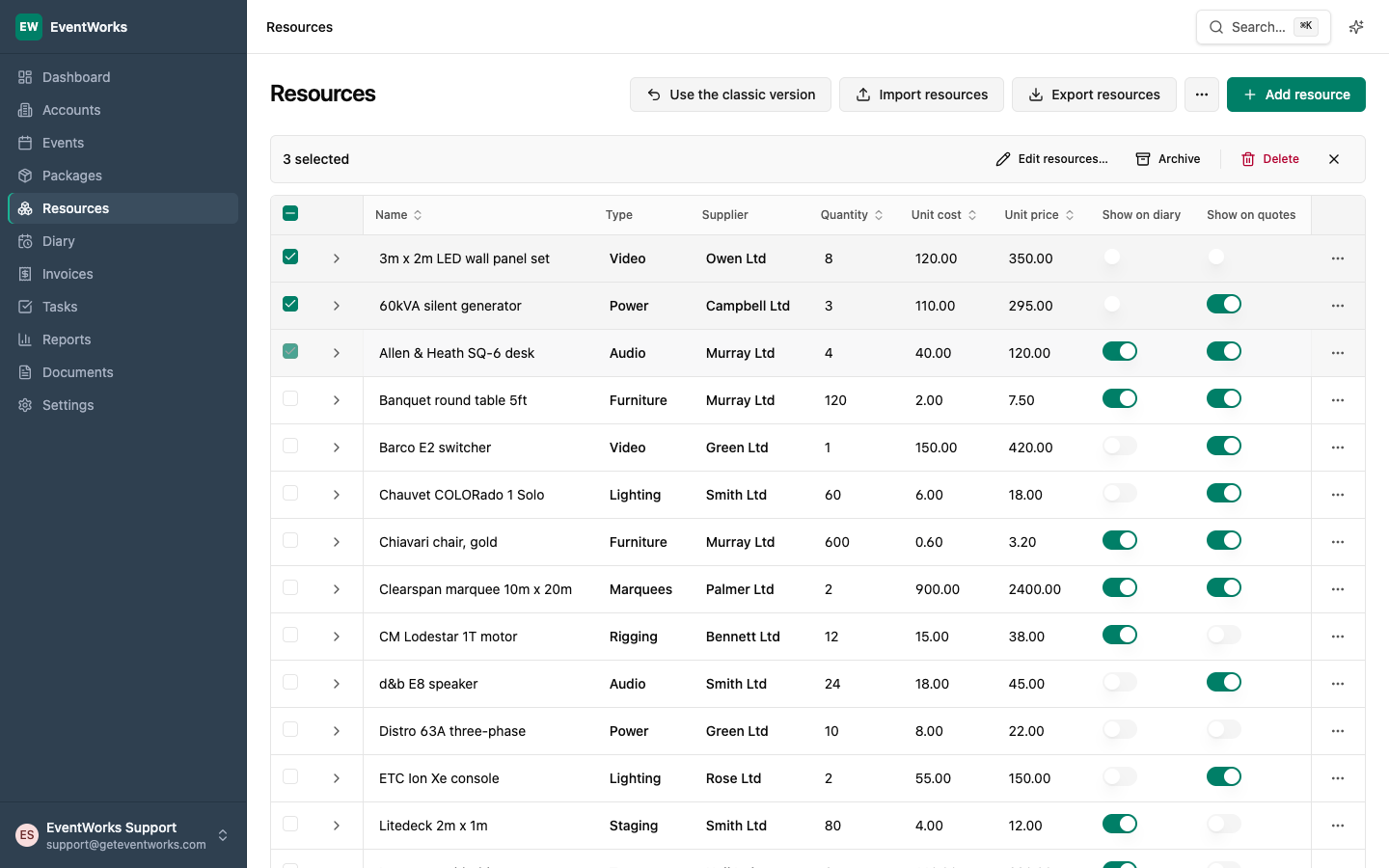
The selection bar shows how many resources you’re changing.
Open a resource’s own page to see its variants and price changes. Variants, such as colours or sizes, share the resource’s stock. Each has its own name and SKU. A variant can have its own unit cost or use the resource’s.
You can schedule a new unit cost and unit price for a particular date and add notes. A quote or event uses the price in effect on its start date.
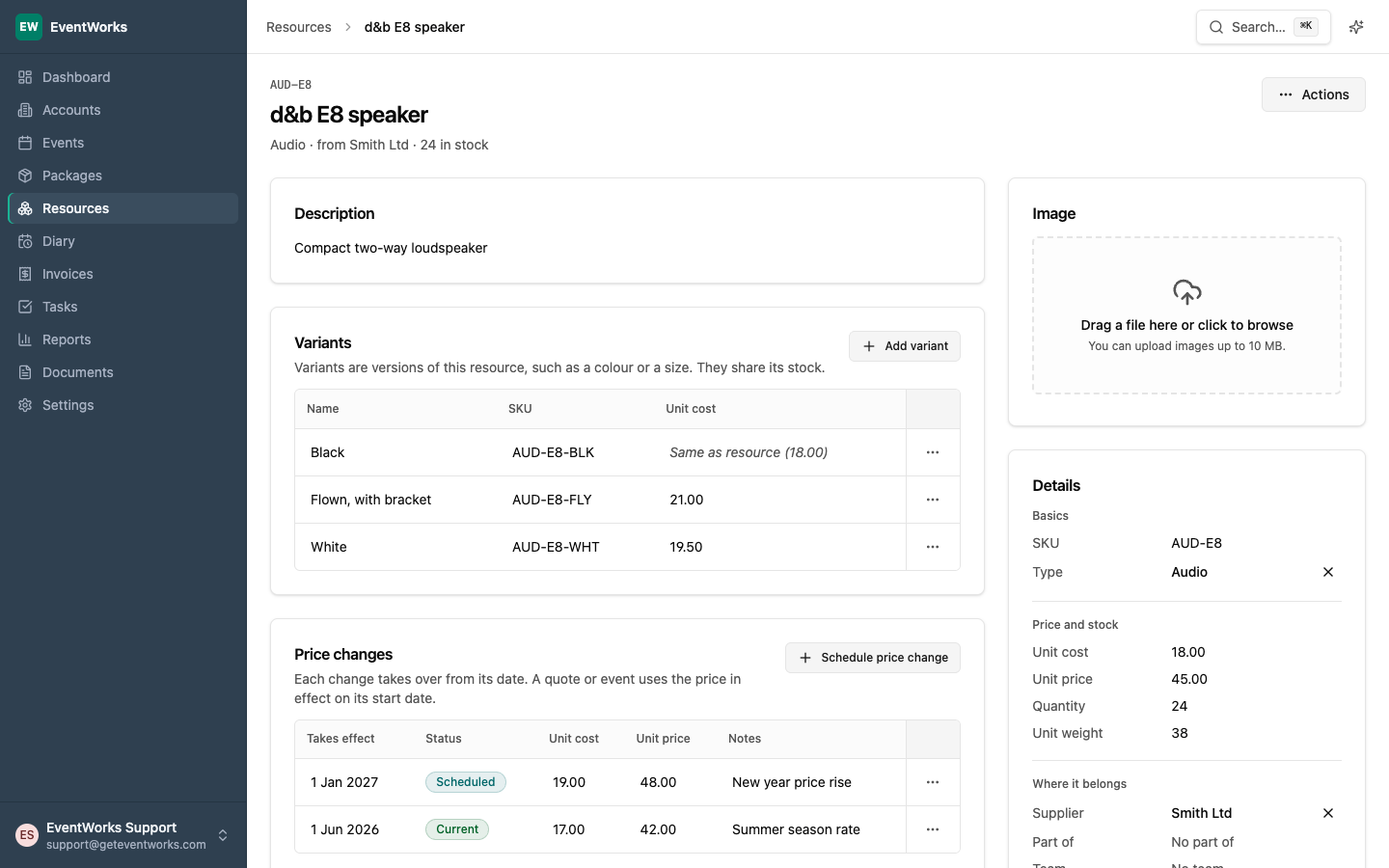
The Price changes table shows which price is Current and which is Scheduled.
Import and export from Resources
If you’ve asked support to import a spreadsheet before, you can now do it yourself. Click Import resources to bring in resources, variants or price changes in four steps: Upload, Match columns, Review and Import.
Start from a template or upload your supplier’s spreadsheet without renaming its headings. EventWorks matches the headings it recognises. In the sheet below, it matched Item to Name, Code to SKU and Cost to Unit cost. You see example values from each column so you can check the match, change it or leave that column out.
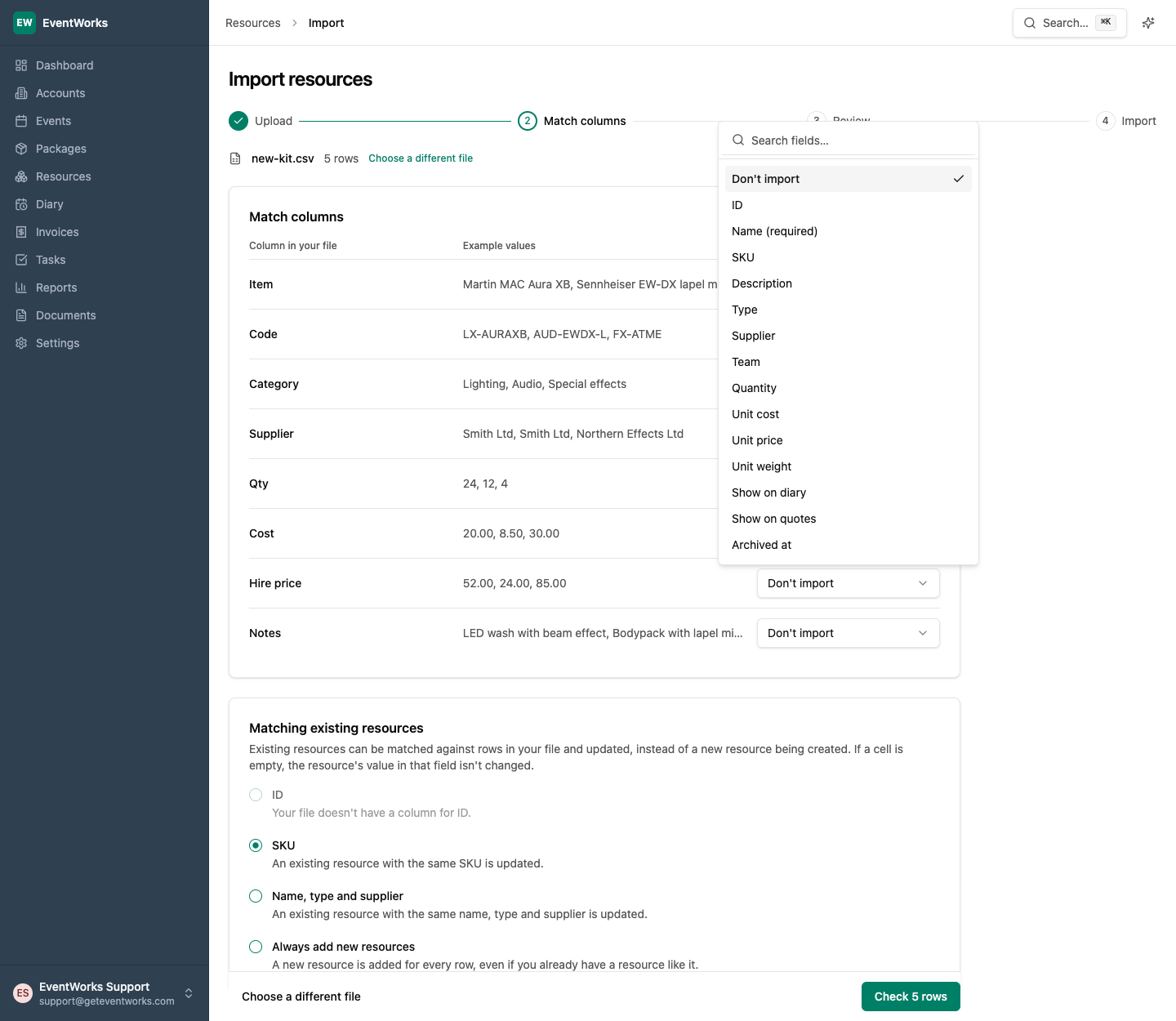
The supplier’s headings stay as they are in the spreadsheet.
You choose how to match rows to existing resources. If you match by SKU, for example, a row with a SKU you already have updates that resource instead of adding it twice. An empty cell leaves the existing value alone.
Before anything is saved, you review every row, marked New or Update, and can change a value there. If the sheet names a type, supplier or team that EventWorks doesn’t recognise, you choose whether to add it or use one you already have.
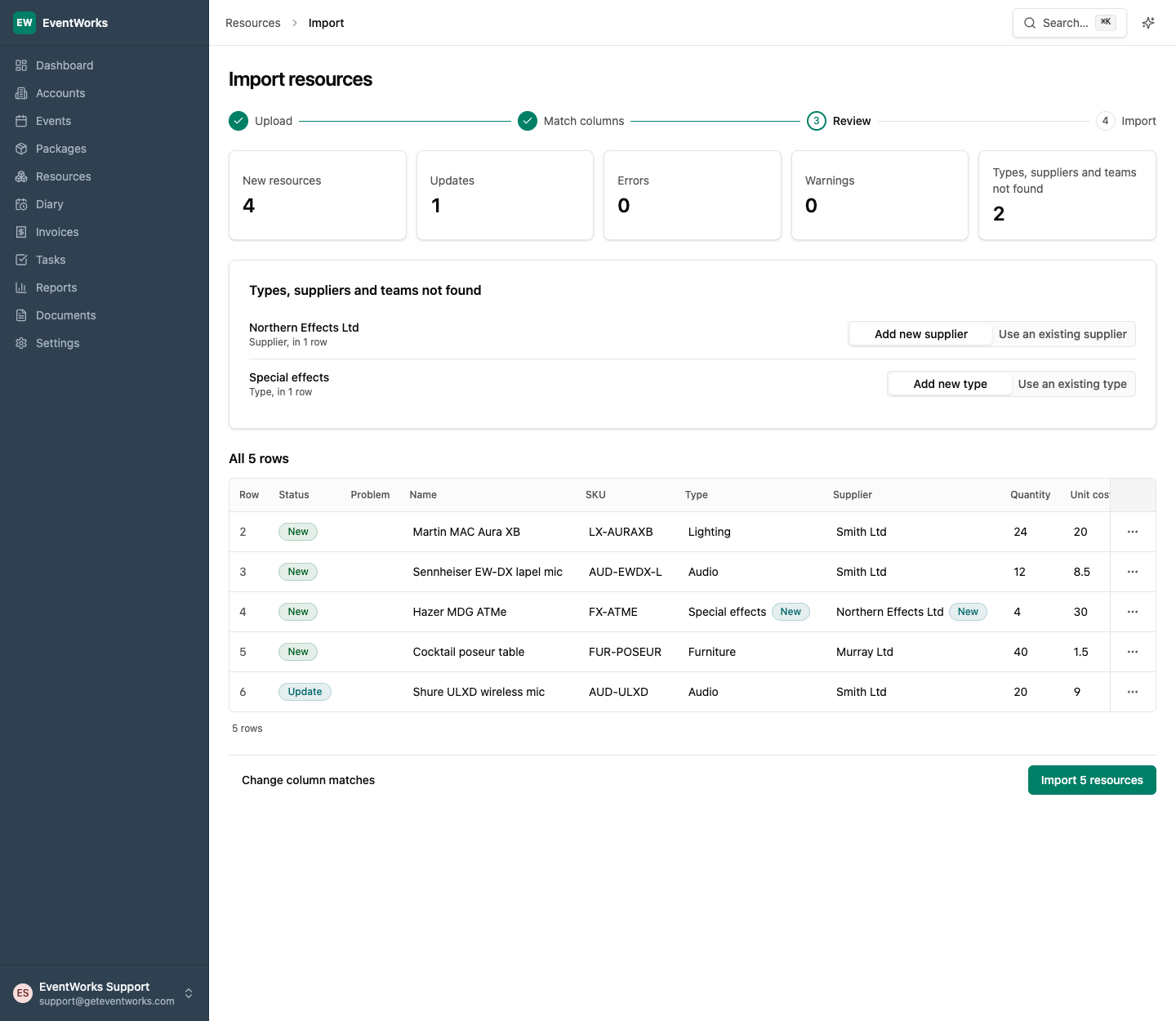
Check what will be added and what will change.
You can undo the import for 7 days. Undo removes the resources it added and puts earlier values back on the resources it updated.
Click Export resources to start with the same search, filters and columns as your list. Adjust them if you need to, then choose CSV or Excel. Variants and price changes export with the columns an import reads, so you can edit the spreadsheet and import it back. As other sections move to the new version, their lists will get the same export options.
If something on Resources doesn’t work for you, we’d like to hear about it. Click Get help in EventWorks to open the support chat, or email [email protected].