A sneak peek at the EventWorks updates coming soon
A first look at the new EventWorks screens: search from anywhere, editing in place, better tables, a timeline for every client, and reports straight from the AI Assistant.
We’ve been rebuilding the screens in EventWorks, and the first part to move is Settings. We built it with a set of tools that every other part of EventWorks will use as it’s updated. Here’s a look at those, and at what’s coming next.
Search
Press ⌘K (Ctrl+K on Windows), or just /, from any page and start typing. You’ll get pages, settings and the places you’ve been recently, ranked as you type.
It goes deeper than page names. Every individual setting is searchable, so typing “vat” lists every setting to do with VAT and shows where each one lives. You don’t need to know which menu to look in.
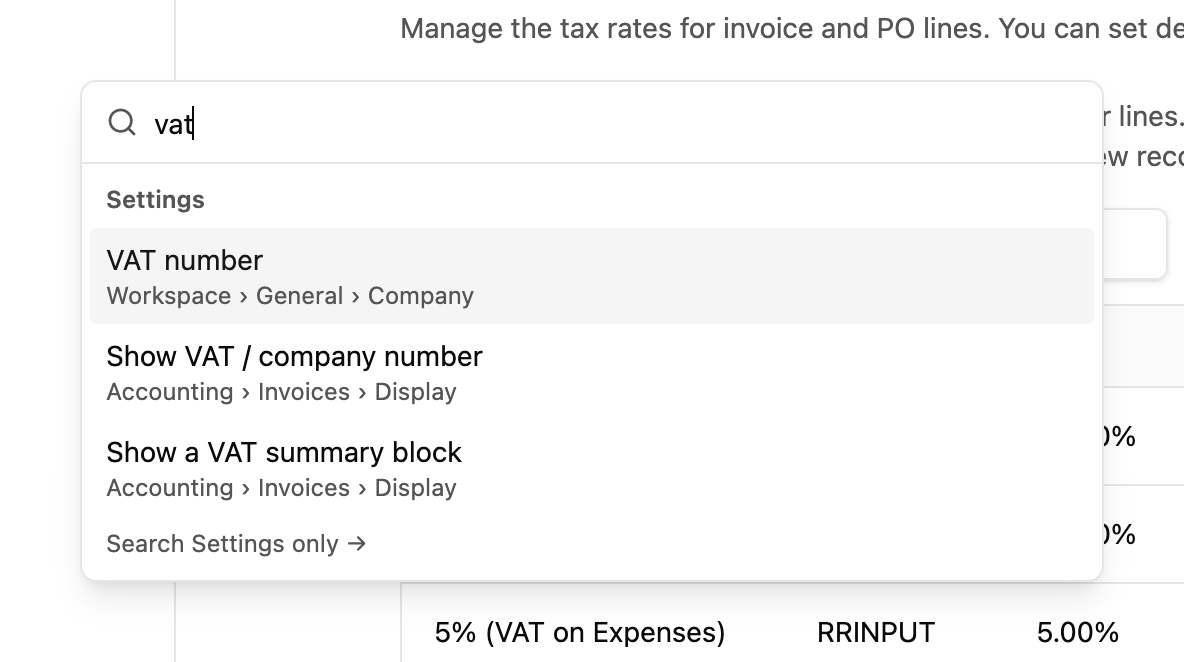
Next we’re teaching it to find your events and clients by name.
Edit in place
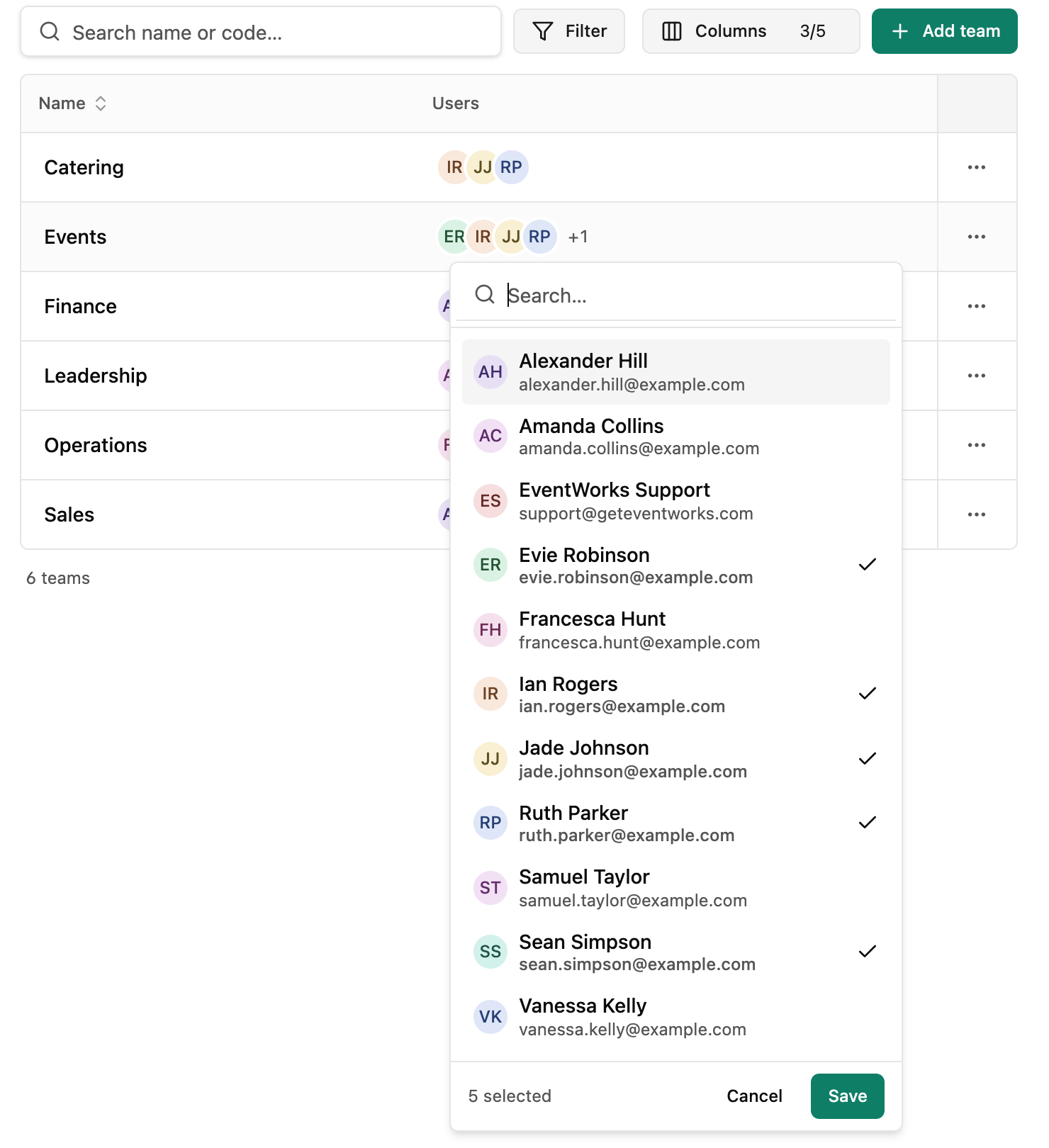
Click a value and change it right there, whether it’s a tax rate or who’s on a team. There’s no separate edit page to open and no form to save and close.
It works the same way everywhere. If you can see a value and you’re allowed to change it, you can click it.
People show up as their initials, so you can see who’s on a team at a glance. Click them to change who’s in it.
Tables
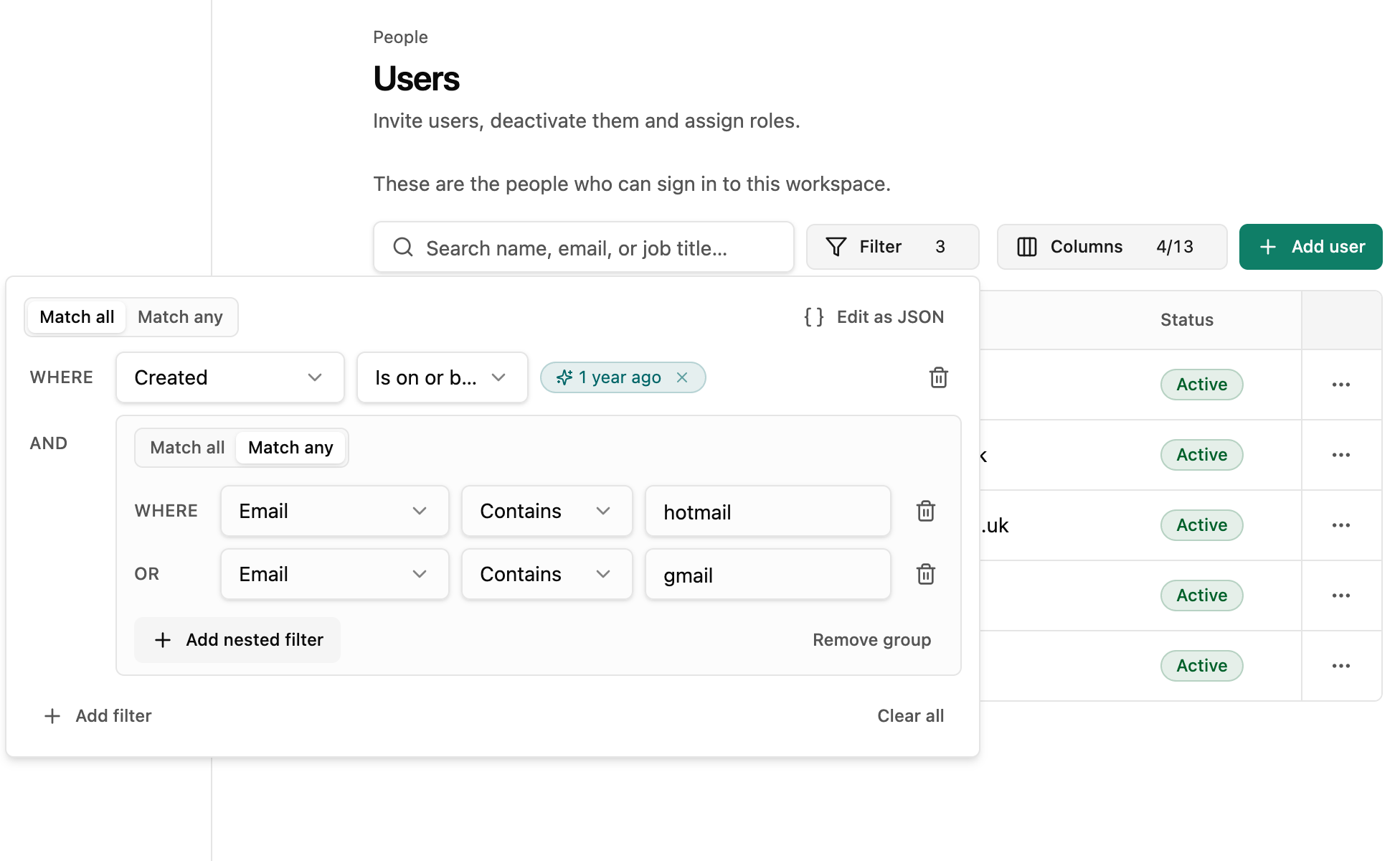
Every list is the same table, and it’s a good one. Search it, sort it, and filter on any field. Combine as many conditions as you need, group them with “match any”, and use relative dates like “a year ago”. Choose which columns you see and drag them into the order you want, and EventWorks remembers that for you next time.
Where the order matters, like event statuses, you drag rows into place. And when you delete something that’s still in use, like a duplicate user, EventWorks asks where its records should go instead of leaving them stranded.
How to try it
When the new screens are available, you’ll be able to turn them on whenever you like and switch back at any time.
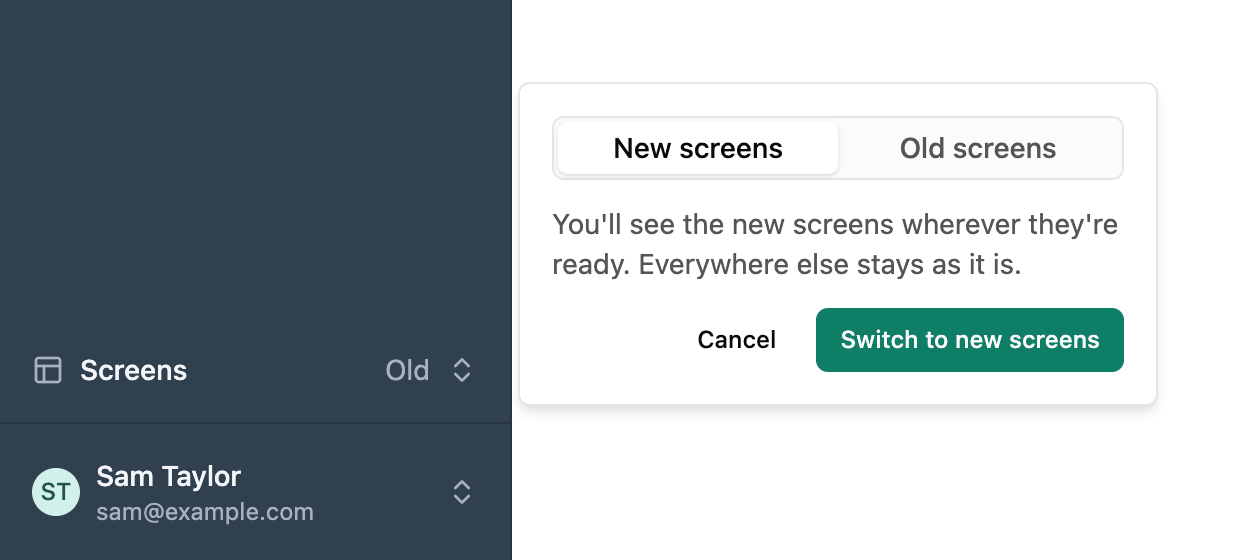
To turn them on, click Screens at the bottom of the sidebar, choose New screens and confirm. You’ll see the new screens wherever they’re ready, and everywhere else stays as it is. Changed your mind? Choose Old screens in the same place.
What we’re working on next
These aren’t in the new screens yet, but they’re next on the list.
Client timeline
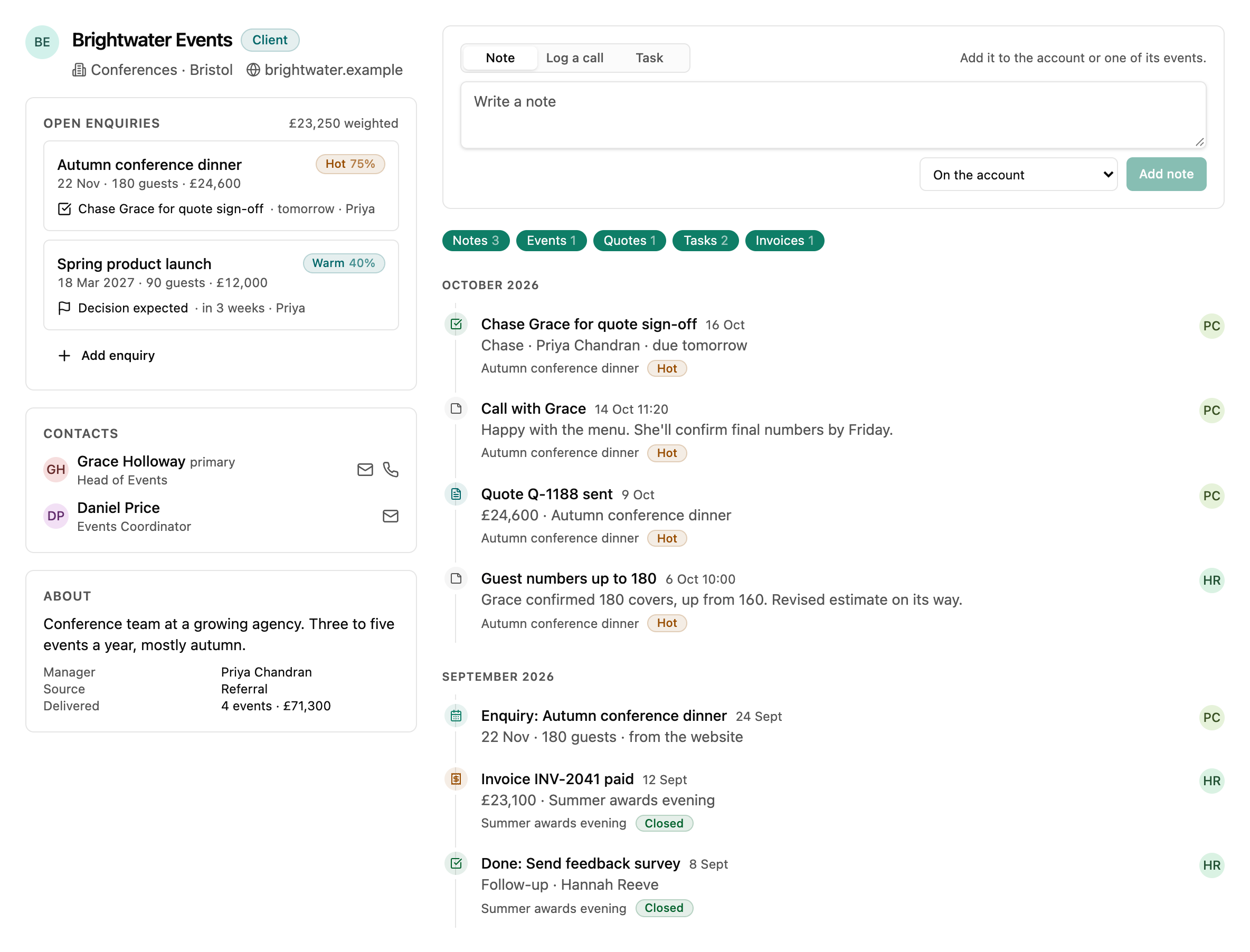
Open a client and everything about them is on one page: notes, calls, events, quotes, tasks and invoices, newest first. Their open enquiries sit alongside, each with its next step and who’s on it, so you can see what needs chasing. Add a note, log a call or set a task from the top of the page.
Reports from a conversation
This is one we’re really excited to share.
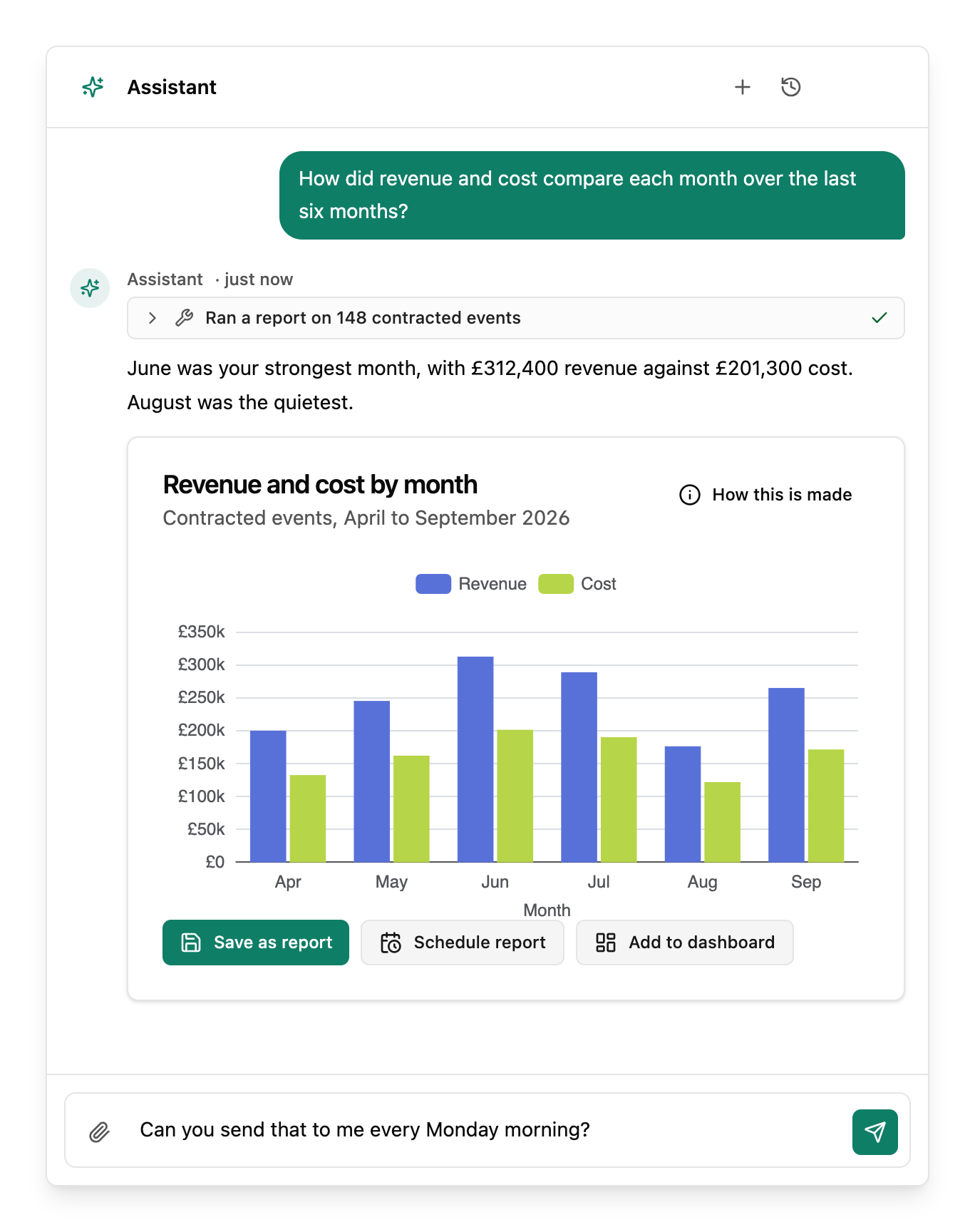
Ask the AI Assistant a question about your numbers and it answers with a report card: a chart built from your own events, right there in the conversation. If it’s useful, save it as a report, schedule it, or add it to a dashboard, all without leaving the chat. “How this is made” shows the records and filters behind every figure, so you can check it before you rely on it.
What would you most like to see next? Tell us through the help button in EventWorks.